I convert the same handful of things constantly. Dollars to pounds. Kilograms to pounds. Celsius to Fahrenheit. Miles to kilometers. Every single time, I open an app, type the number, select units, read the result.
The whole process takes maybe fifteen seconds. But do that twice a day and it's an hour a year of your life spent on unit conversions. Which is why I started using Shortcuts.
The Basic Setup
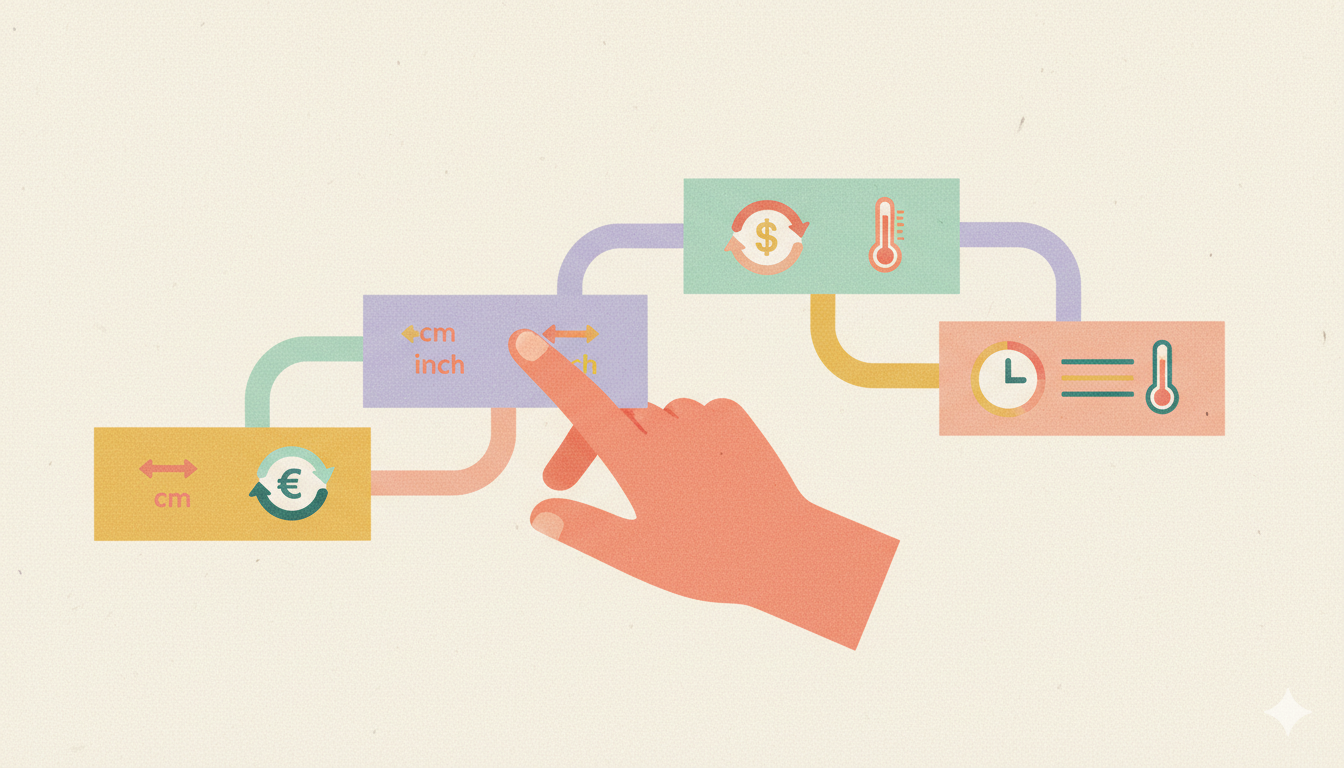
Convert exposes its conversion functionality to iOS Shortcuts. You can trigger conversions directly from Siri, from a shortcut on your home screen, or from the Share Sheet when you select a number in another app.
To see what's available, open the Shortcuts app, create a new shortcut, and search for "Convert" in the actions list. You'll see options for different conversion types.
Shortcut 1: Quick Currency Check
This is the one I use most. It asks for an amount, converts it from USD to GBP, and shows the result as a notification. Total time: about three seconds.
Here's how to build it:
- Open Shortcuts and tap the + to create a new shortcut.
- Add action: Ask for Input
- Prompt: "Amount in USD"
- Input Type: Number
- Add action: Convert Currency (from Convert's actions)
- Amount: [Provided Input]
- From: USD
- To: GBP
- Add action: Show Result
- Result: [Converted Amount]
- Name it something like "USD to GBP" and add it to your Home Screen or widget.
Now when I tap the shortcut icon, I get a number pad, type an amount, and instantly see the converted value. No app switching required.
I also like to add this shortcut to Siri. Long-press the shortcut, tap "Add to Siri," and record a phrase like "convert dollars." Then I can just say "Hey Siri, convert dollars" and speak the amount.
Shortcut 2: Share Sheet Conversion
You're reading a recipe in Safari. It says "preheat oven to 220°C." You're American. What even is that in Fahrenheit?
With a Share Sheet shortcut, you can select "220," tap Share, and get the conversion without leaving Safari.
- Create a new shortcut.
- Tap the ⓘ at the bottom and enable Show in Share Sheet.
- Set "Receive" to Text and Numbers.
- Add action: Convert Temperature
- Amount: [Shortcut Input]
- From: Celsius
- To: Fahrenheit
- Add action: Show Result
- Name it "°C to °F"
Now whenever you select a number in Safari, Notes, Messages, or any other app with Share Sheet support, your conversion shortcut appears as an option.
I have three of these: Celsius to Fahrenheit, kilometers to miles, and kilograms to pounds. They cover about 90% of my "what is this in units I understand" moments.
Shortcut 3: Travel Prep Currency Brief
Before international trips, I like to have a mental sense of what things cost in local currency. This shortcut gives me a quick reference card.
- Create a new shortcut.
- Add action: Text
- Content: "10, 20, 50, 100, 200"
- Add action: Split Text by commas
- Add action: Repeat with Each
- Inside the repeat block: Convert Currency from USD to your destination currency
- Add to a variable called "Results"
- After the repeat: Show Result with the Results variable formatted nicely.
Running this shortcut shows me:
- $10 = £8.20
- $20 = £16.40
- $50 = £41.00
- $100 = £82.00
- $200 = £164.00
Takes two seconds to run and gives me a mental anchor for the trip. I usually screenshot it and keep it in my Photos for offline reference.
Shortcut 4: Recipe Scaler
When I'm halving or doubling a recipe, I need to convert multiple measurements quickly. This shortcut walks through common cooking conversions.
- Add action: Ask for Input — "Cups?"
- Add action: Convert Volume from cups to milliliters
- Add action: Ask for Input — "Ounces?"
- Add action: Convert Mass from ounces to grams
- Add action: Ask for Input — "Fahrenheit?"
- Add action: Convert Temperature to Celsius
- Compile all results and Show Result
I don't use this one as often, but when I'm scaling a recipe from an American cookbook, it saves a lot of back-and-forth.
Tips for Better Shortcuts
A few things I've learned from building these:
- Add shortcuts to Focus modes. My "Travel" Focus mode includes my travel currency shortcut on the customized Home Screen. Right context, right tools.
- Use the widget. You can add a Shortcuts widget to your home screen showing your most-used shortcuts. One tap access.
- Don't go overboard. I have about eight conversion shortcuts. That's plenty. More than that and you spend more time finding the right shortcut than just opening the app.
- Name them for Siri. If you want to trigger shortcuts by voice, give them short, distinct names. "Convert dollars" is better than "USD to GBP currency conversion shortcut."
Why Bother?
Fifteen seconds per conversion, twice a day, 365 days a year: three hours annually. Not life-changing, but not nothing.
The real value isn't time savings — it's friction reduction. The conversions I used to skip because "it's not worth opening an app" now happen automatically. I actually know what temperatures recipes are talking about. I have a better intuitive sense of prices when I travel.
Small automations compound. This is one of the easier ones to set up.